Zorofin / Apple TV
A Jellyfin client
for Apple TV.
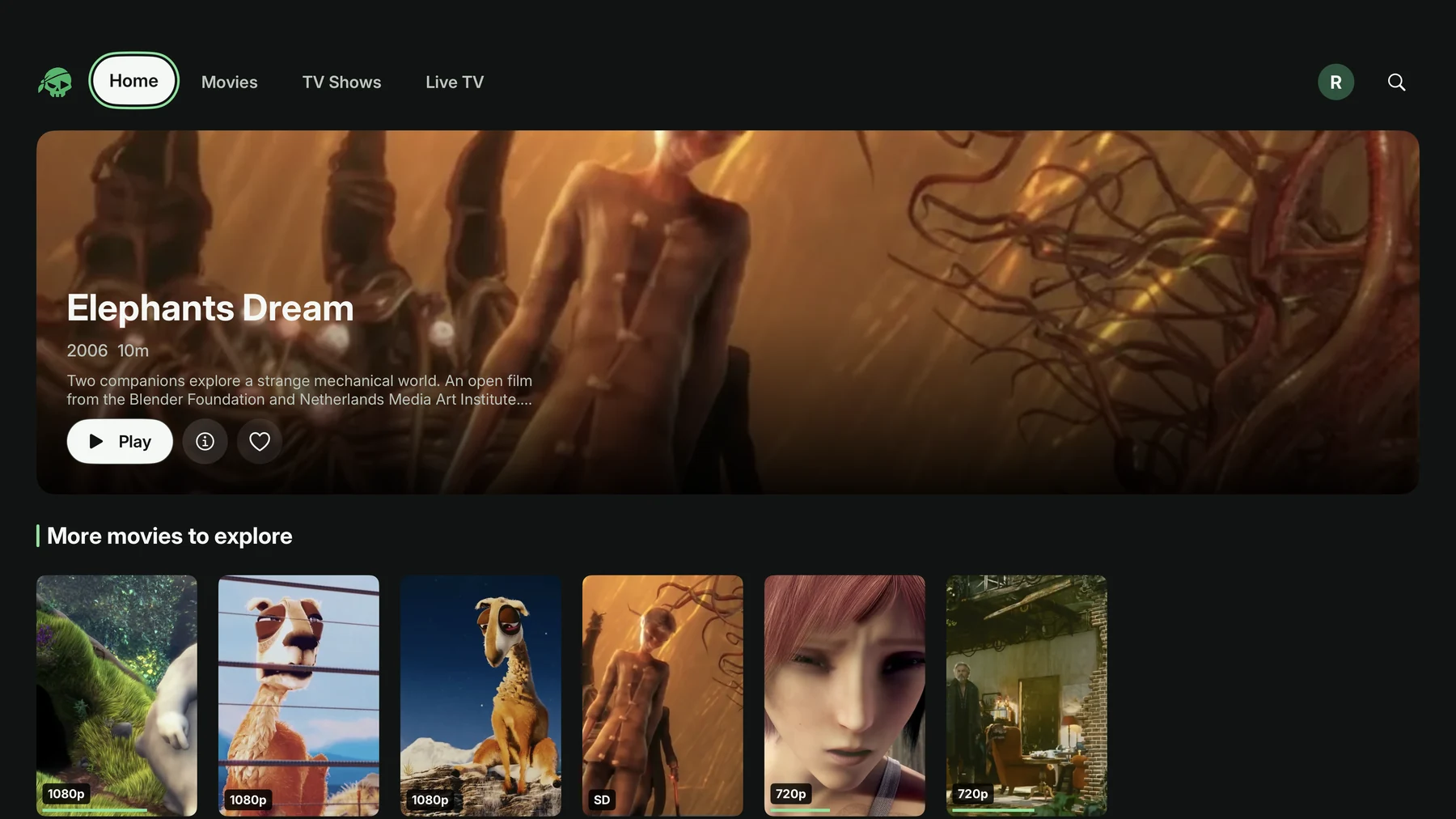
Zorofin brings your own Jellyfin library to Apple TV with native browsing, a custom player and controls designed for the remote. It is currently in closed beta.
What can I do with Zorofin on Apple TV?
Browse movies and shows, search your library, open title and episode details, and play media from your server. The custom player provides audio, subtitle, quality and playback-information controls. Available tracks and formats depend on your media, server and device.
When the app is placed in the Apple TV Home Screen’s top row, signed-in library previews can provide shortcuts back into your collection. Live TV is available when your Jellyfin server provides it and your account has access.
Does it work with an ordinary Jellyfin server?
Yes. The core client uses Jellyfin for sign-in, browsing, playback, favorites and watch state. You do not need a Zorofin backend, Sonarr, Radarr or Seerr to browse and watch an existing Jellyfin library.
Requests, server support and related notifications are optional. They appear only when the connected server provides compatible features and your account is permitted to use them. Zorofin does not automatically install or configure those services.
How do I connect my server?
- Obtain the Jellyfin server address from its operator.
- Open Zorofin on Apple TV and enter that address.
- Sign in with your existing account, or use Quick Connect when the server enables it.
- Browse your library and choose a title to play.
Zorofin does not supply a public server, account signup, media subscription or movies. Use only content you have permission to access.
Can I download it from the App Store?
Zorofin is in closed TestFlight beta. A public App Store release has not been announced. Existing invited testers can use TestFlight; this page will link to the public listing when it is available.
What should I check if playback does not start?
Confirm that the same account can reach the server and access the title. Media compatibility, transcoding permissions and the network connection can affect playback. When reporting an issue, include the device, app version and what happened. Never include passwords or sign-in tokens.